MacBook Air is Apple's line of thin, fanless notebooks, currently sold in two screen sizes and built around Apple's own M-series chips rather than Intel processors, a shift documented across the model's history on Wikipedia. Picking the right one — and the right things to plug into it — comes down to a handful of checkable specs, not a gut feeling about which model "feels" premium. This runs through the five practical situations that actually decide which Air, and which setup around it, works.
Buyer wants to run two external monitors
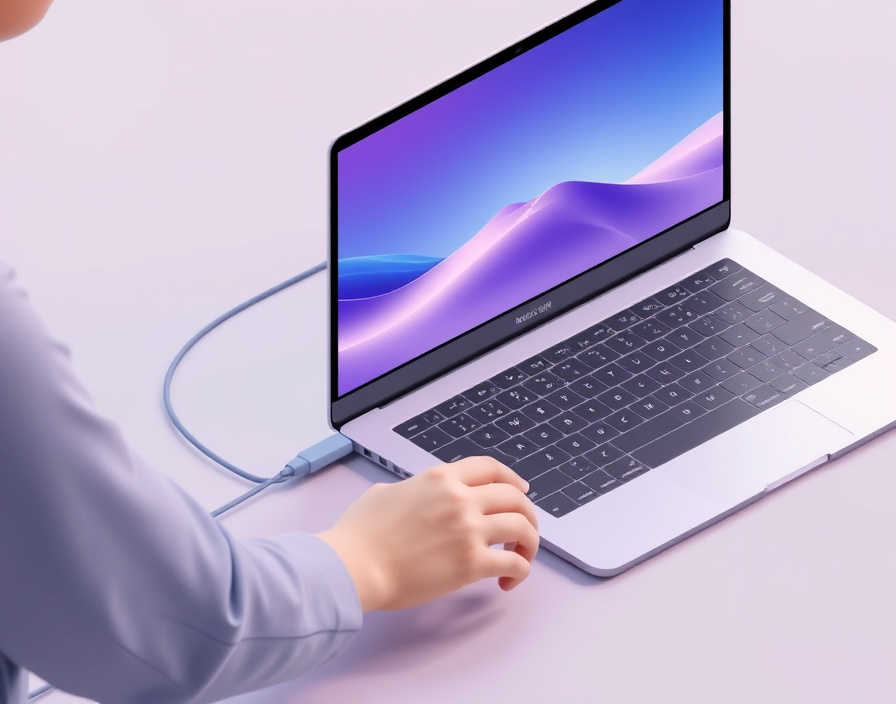
If a job needs two external displays running from one machine, the chip inside the Air — not the screen size — decides whether that's possible out of the box. Apple's own product page lists external display support separately for each configuration, and the number changes between chip generations rather than staying constant across the line, as shown on the MacBook Air product page.
Before buying:
- Check which Apple silicon generation a listed model uses — M2, M3, or a newer chip — since display support is tied to the chip, not the notebook's outward size.
- Look up the specific external display count and resolution ceiling for that chip on the product page rather than assuming it matches an older Air a friend owns.
- If the configuration only drives one external display natively, decide whether a dock or DisplayLink-based adapter that emulates a second output is an acceptable workaround, or whether the extra display support is worth paying for outright.
This turns "which Air should I buy" from a vague preference question into a spec that can be verified before checkout, which is the single most common source of after-purchase disappointment: someone buys a size or a color they liked and later discovers the chip inside won't drive the monitor setup they already own.
Buyer asks how long a MacBook Air lasts
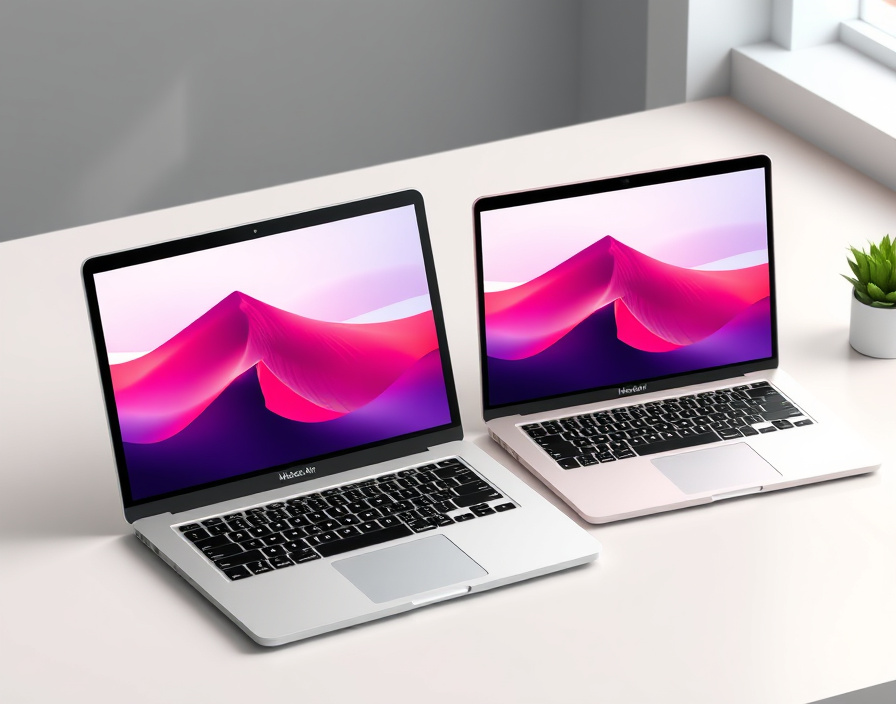
A MacBook Air's usable life is set mainly by how long macOS keeps releasing updates for its specific chip, not by how the battery or the aluminum case are holding up. Apple publishes hardware and software support information for its Mac laptops through its own Mac Laptop Support pages, and historically newer chip generations remain eligible for new macOS versions for longer than the generation before them, simply because Apple drops the oldest supported hardware each cycle.
That means two Airs that look identical in a compare table — same size, same RAM, same storage — can have different remaining lifespans if one has an older chip. A machine still on an M1 will lose macOS eligibility sooner than one bought new with a current chip, even though both may run fine physically. Two things extend the practical life of an Air beyond that software cutoff:
- Buying a current-generation chip rather than the cheapest previous-generation unit still on sale, which buys more years before the software cutoff arrives.
- Budgeting for a battery replacement once capacity has visibly dropped, which Apple's support channels handle as a service item rather than something the buyer needs to plan around at time of purchase — details are listed through Apple's support pages.
A reader trying to estimate how long a specific listing will last should ask which chip is inside it and check that chip's position in the current supported lineup, rather than asking for a lifespan in years, since that number moves every time Apple ships a new generation.
Buyer is deciding between 13-inch and 15-inch
Screen size on the current Air lineup changes weight, portability and how much you can see on screen at once — it does not by itself change how fast the machine is. Both sizes are listed with the same range of chip, RAM and storage configurations on Apple's MacBook Air page, which means performance is a separate decision from size.
| Consideration | 13-inch Air | 15-inch Air |
|---|---|---|
| Best for | Carrying daily, working in tight spaces (trains, cafés, small desks) | Working mostly at a desk or wanting more on-screen space without an external monitor |
| Portability | Lighter and smaller footprint | Heavier, larger footprint, still fanless |
| On-screen area | Less room for side-by-side windows | Noticeably more room for multitasking without zooming out |
| Chip and RAM options | Listed range shared with the 15-inch | Listed range shared with the 13-inch |
Because the chip options don't change between sizes, the right approach is to settle size first against how the laptop will actually be carried and used, then choose chip, RAM and storage afterward as a separate step. Buyers who blend the two decisions — assuming the bigger model must be the "better" one — often end up paying for a 15-inch screen while under-configuring the chip or storage for what they actually do with it.
New Air arrives
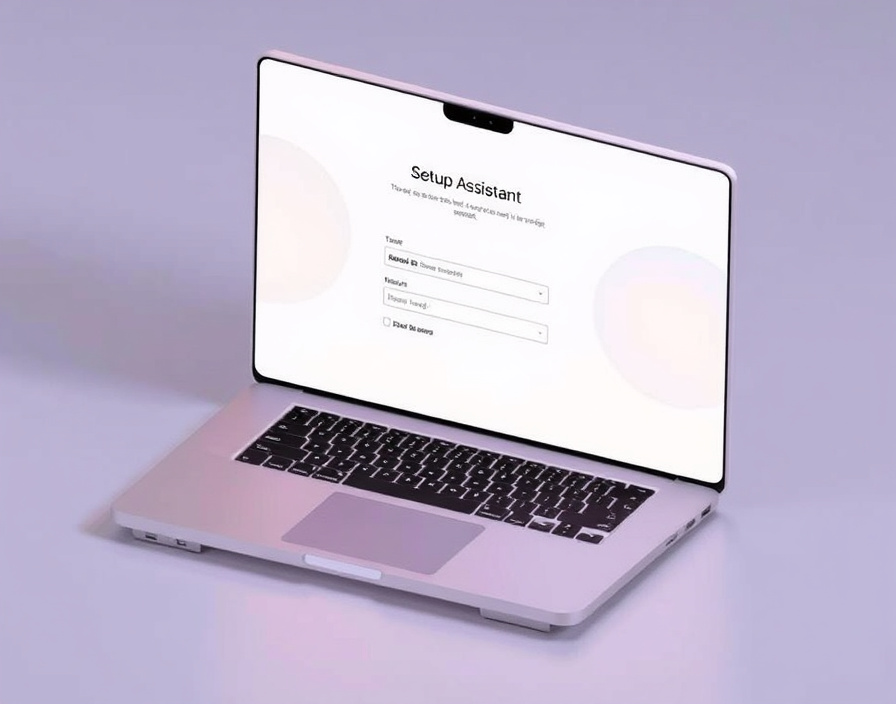
The first hour with a new MacBook Air goes better in a specific order, since setup, account sign-in and peripheral connection each depend on the step before it. Apple's own onboarding flow and support documentation lay out the pieces, but not always as a single sequence, so here is that sequence:
- Run through Setup Assistant and, if migrating from an older Mac or a PC, use the migration option to bring over files, apps and settings rather than starting from a blank system — Apple's Mac Laptop Support pages cover the current migration tools.
- Sign in with the same Apple Account already used on an iPhone or iPad, since that's what enables Continuity features like Handoff, Universal Clipboard and using an iPhone as a webcam or hotspot without extra setup.
- Connect displays, docks, headphones and other accessories only after sign-in, so the system already has the right iCloud, Wi-Fi and Bluetooth settings in place before external hardware is added.
- Check for macOS updates immediately, since a laptop that's been sitting in a warehouse or store shelf is frequently a few point-releases behind by the time it's unboxed.
Doing sign-in before plugging in accessories avoids a common snag: Bluetooth peripherals paired before the Apple Account is set up sometimes need to be re-paired afterward, which is an avoidable extra step.
13-inch MacBook Air
The 13-inch Air is the smaller-screen configuration of the current line, built around the same Liquid Retina display technology and chip options as its larger sibling. It's the version most often bought as a single everyday machine — light enough to carry without a dedicated bag insert, and listed with the same chip, RAM and storage tiers as the 15-inch model on Apple's own listing. Anyone comparing configurations should treat its smaller footprint as the entire reason to choose it, not as a sign it's a lesser machine.
15-inch MacBook Air
The 15-inch Air is the larger-screen configuration of the same line, aimed at people who want more working space without carrying a heavier Pro model or attaching an external monitor. It's listed with the same range of chip, RAM and storage options as the 13-inch version on Apple's product page, so the trade being made at purchase time is mainly size and weight for screen real estate rather than capability. It suits people who work primarily at a fixed spot — a desk, a studio, a shared table at home — over people who need to slip a laptop into a small bag every day.
Apple silicon chip (M-series)
The M-series chip is what actually separates one Air generation from another — it governs speed, external display capability, and how many future macOS versions the machine will be eligible for. Every current MacBook Air uses one of Apple's own M-series chips rather than an Intel processor, and successive generations (M1 through the current lineup) have changed core counts, memory bandwidth and display output limits, a history tracked across specific models on EveryMac's MacBook Air specification archive. Because two Airs of the same screen size can carry different chip generations depending on when they were bought or which configuration was chosen, checking the specific chip name — not just "M-series" as a category — is the only reliable way to know what a given unit can actually do.
Liquid Retina display
Liquid Retina is Apple's name for the built-in screen technology used across the current MacBook Air lineup, and it's the single spec most people notice first when comparing listings. Both the 13-inch and 15-inch models use this display type, with resolution and physical size scaling to match the chassis rather than the underlying panel technology changing between sizes, as described on Apple's MacBook Air page. What differs meaningfully between generations and sizes is pixel density and physical dimensions rather than the display's core technology, so buyers comparing "13-inch vs 15-inch" on display quality alone are usually comparing size, not sharpness.
External display support
External display support is the number and type of monitors a given Air configuration can drive from its own ports, and it's set by the chip rather than by the notebook's screen size or price tier. Apple documents display support per configuration on its MacBook Air page, and the practical effect is that a base configuration and a higher-tier configuration of the exact same physical laptop can differ in how many monitors they'll run natively.
For anyone setting up a desk-based workflow around an Air, the sequence is:
- Confirm the exact external display count listed for the specific chip in the configuration being bought, not for "the MacBook Air" as a general category.
- If more displays are needed than the chip supports natively, look at a dock built around DisplayLink or similar technology that adds virtual displays rather than assuming any USB-C dock will do it.
- Match cable and port type to the monitor's own input, since a monitor requiring DisplayPort over USB-C behaves differently than one expecting HDMI through an adapter.
Ports
The Air's ports are the physical connections used for charging, driving displays and connecting accessories, and their protocol — not just their shape — determines what they can actually do. Current Airs combine Thunderbolt/USB-C ports with a separate MagSafe charging port and a 3.5mm headphone jack, a combination laid out on Apple's product page. Because MagSafe handles charging separately, both Thunderbolt ports remain free for displays, storage or docks at the same time power is connected, which matters for anyone running an external monitor and an external drive simultaneously. Buyers doing multi-accessory setups should count how many Thunderbolt ports a given configuration actually has before assuming a dock will solve a display or bandwidth shortfall — a dock still shares the bandwidth of the port it's plugged into.
Headphone jack
The headphone jack on the MacBook Air is a standard 3.5mm audio port, retained across current configurations alongside the USB-C/Thunderbolt ports, as listed on Apple's specifications page. It's a small detail that matters mainly to people using wired headphones, audio interfaces, or classroom and studio equipment that still expects an analog connection rather than Bluetooth. Anyone relying on wired audio gear for a hard deadline — a recording session, a listening test, a shared classroom set — should confirm the jack is present on the exact model being bought rather than assuming it, since Apple has removed ports from other product lines in the past without warning existing owners it would happen to every device.
Match the chip, size and port count to what's actually being plugged in and carried before comparing prices — that's the check that prevents most of the regret that shows up after the return window closes.