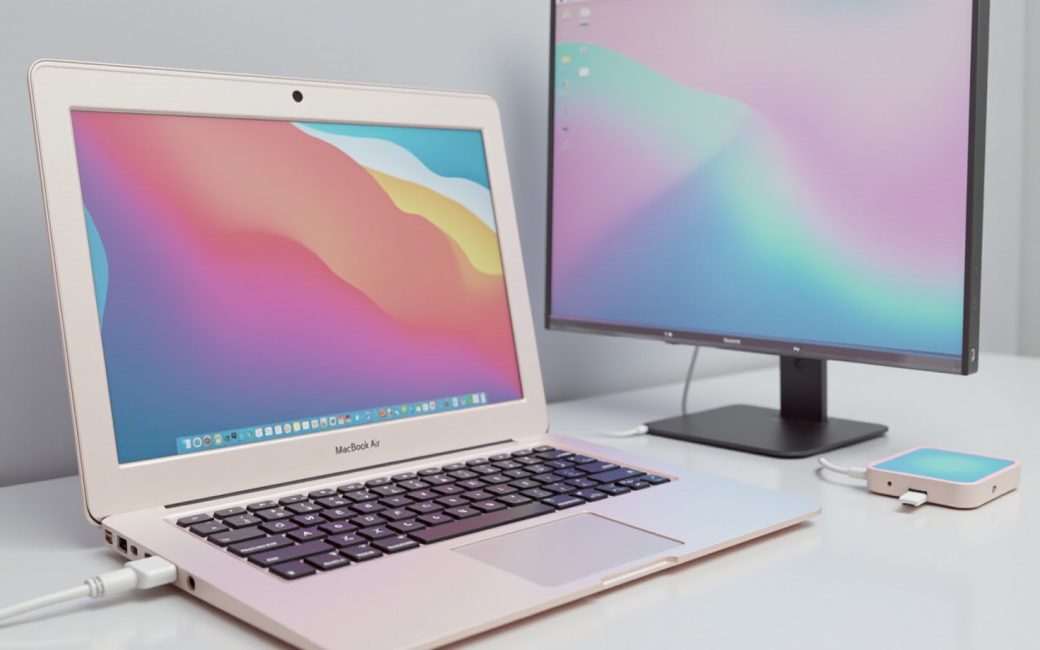
Buyer wants to run two external monitors

Before buying a MacBook Air to sit at a desk with two screens, check which Apple silicon generation is inside the specific configuration being considered, because external display support is not the same across the lineup. The number of displays a MacBook Air can drive, and whether it can do so with the lid open or closed, is tied to the chip, not to the screen size or the amount of storage.
The way to check this is to look at the tech specs section of a listing rather than assume every current Air behaves the same way. Apple's comparison page lists supported display configurations per model, and it's worth reading that line item specifically rather than skimming past it.
- Confirm the chip generation on the exact configuration page, not just the model name.
- Look for the phrase describing how many external displays are supported and under what conditions (lid open, lid closed, native resolution).
- If the built-in display needs to stay active alongside two externals, check whether that's listed as supported or whether it requires a workaround.
- If the native port count or display support falls short, plan for a dock or DisplayLink-based adapter rather than assuming the ports alone will cover it.
Turning "which Air should I buy" into "does this configuration's chip support two external displays the way I need" prevents the most common source of buyer's remorse: getting the laptop home and finding a second monitor won't drive at the expected resolution, or won't work at all with the lid shut.
Buyer asks how long a MacBook Air lasts
A MacBook Air's usable life is set less by the battery or the aluminum body wearing out than by how long macOS keeps releasing new versions for that chip generation. Apple's own Mac Laptop Support hub is the place to check current update status and which models are still receiving the latest macOS release, since that eligibility list changes as new macOS versions ship and older chip generations get dropped.
This matters because software support, not hardware failure, is usually what ends a laptop's practical life. A Mac that no longer qualifies for the current macOS release stops getting new features and, eventually, security patches, even if the battery and keyboard still work fine. Buying a current-generation Apple silicon chip, rather than an older discounted configuration, buys more years on that update calendar before this becomes an issue.
Battery condition is the other constraint, and it's a serviceable one rather than a fixed lifespan. When capacity degrades enough to be noticeable, Apple's support pages describe battery service as a paid repair option rather than something that requires replacing the whole machine — a cheaper way to extend the same laptop's working life once the chip itself is still current enough to run modern macOS.
Buyer is deciding between 13-inch and 15-inch
The 13-inch and 15-inch MacBook Air are the same core machine wearing two different bodies, and the decision to make first is about how the laptop will be carried and used, not about raw performance. Apple's MacBook Air page lists both sizes alongside the same chip options, which is exactly why the size question and the performance question get blurred together in spec tables and shouldn't be.
| Factor | 13-inch | 15-inch |
|---|---|---|
| Primary trade-off | Lighter, smaller footprint for a bag or commute | More on-screen working area for windows side by side |
| Best fit | Frequent travel, working from a lap, backpack carry | Desk-first use, spreadsheets, multiple documents open at once |
| Chip and RAM options | Same range as 15-inch on current models | Same range as 13-inch on current models |
Because the chip and memory configurations are shared across both sizes, picking the screen size first and the internal specs second keeps the two decisions separate. Someone who mostly works from a couch or on trains gets more day-to-day benefit from the smaller, lighter body than from a slightly larger display; someone who parks the laptop on a desk most of the day gets more benefit from the extra screen real estate than from the weight saved by going smaller.
New Air arrives
Setting up a new MacBook Air in the right order avoids the most common first-day headaches: an incomplete migration, missed Continuity features, or a headphone jack that's suddenly in the wrong place. Apple's Getting Started Guide and its tour of the MacBook Air lay out the pieces; doing them in sequence is what actually matters.
- Run setup and migration first, before installing anything else, so files, passwords and app licenses transfer from the old machine in one pass rather than piecemeal.
- Sign in with the same Apple Account used on an iPhone or iPad immediately after migration, since Continuity features like Handoff and Universal Clipboard depend on that shared sign-in.
- Connect external displays, keyboards, mice and headphones only after sign-in is complete, using the port layout shown in the tour guide, so drivers and permissions prompts are already resolved.
- Check for software updates once peripherals are connected, since the initial macOS build on a new machine is often not the latest available.
Apps
The software a MacBook Air runs is where the practical difference between chip generations shows up first, since Apple silicon runs both native Mac apps and, for many titles, iPhone and iPad apps directly. That cross-compatibility is part of what Apple's Mac page positions as a reason to move from an Intel-based machine, but the deciding factor for any specific workload is still whether the software in question has a native Apple silicon build rather than running under emulation.
Accessories
A MacBook Air's port selection determines which accessories become mandatory rather than optional on day one. The tour of MacBook Air shows exactly which ports are on the left and right edges of the current models, which is the fastest way to check before buying a monitor cable, external drive, or dock, rather than discovering a mismatch after unboxing.
Magic Keyboard
The Magic Keyboard built into current MacBook Air models includes Touch ID, which functions as the sign-in and purchase-authentication method in place of a separate fingerprint reader or security key. It's a fixed part of the chassis rather than a swappable accessory, so anyone who prefers a different key layout or a numeric keypad needs to plan for an external keyboard rather than expecting to modify the built-in one.
macOS
macOS is what governs which features a given MacBook Air can actually use, since new capabilities are tied to the operating system version and some of those versions are limited to newer chip generations. Checking a model's current and expected macOS eligibility on Apple's support pages before buying is a better predictor of long-term usability than any single benchmark, because it determines how many years of feature and security updates that specific configuration will still receive.
13-inch MacBook Air
The 13-inch MacBook Air is the smaller-screen configuration of the current line, sharing its chip and memory options with the 15-inch version rather than being a lower-tier machine. Anyone who has already decided that portability matters more than screen real estate, per the earlier size comparison, can move straight to picking a chip and storage tier on the MacBook Air page or check education pricing if eligible, without needing to reconsider size again.