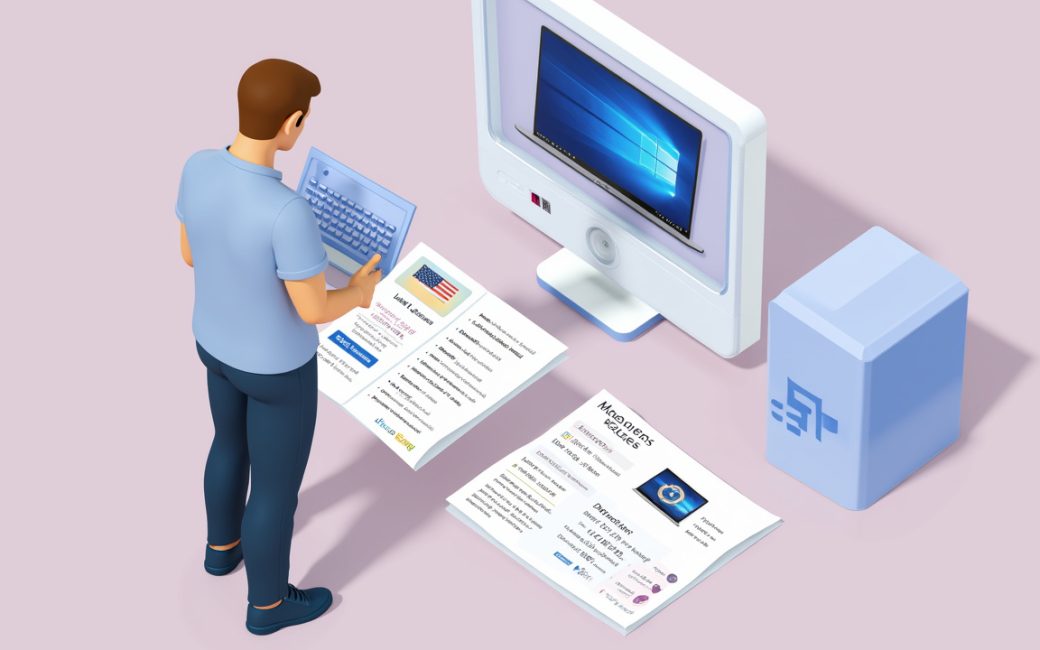
The configurations worth skipping right now
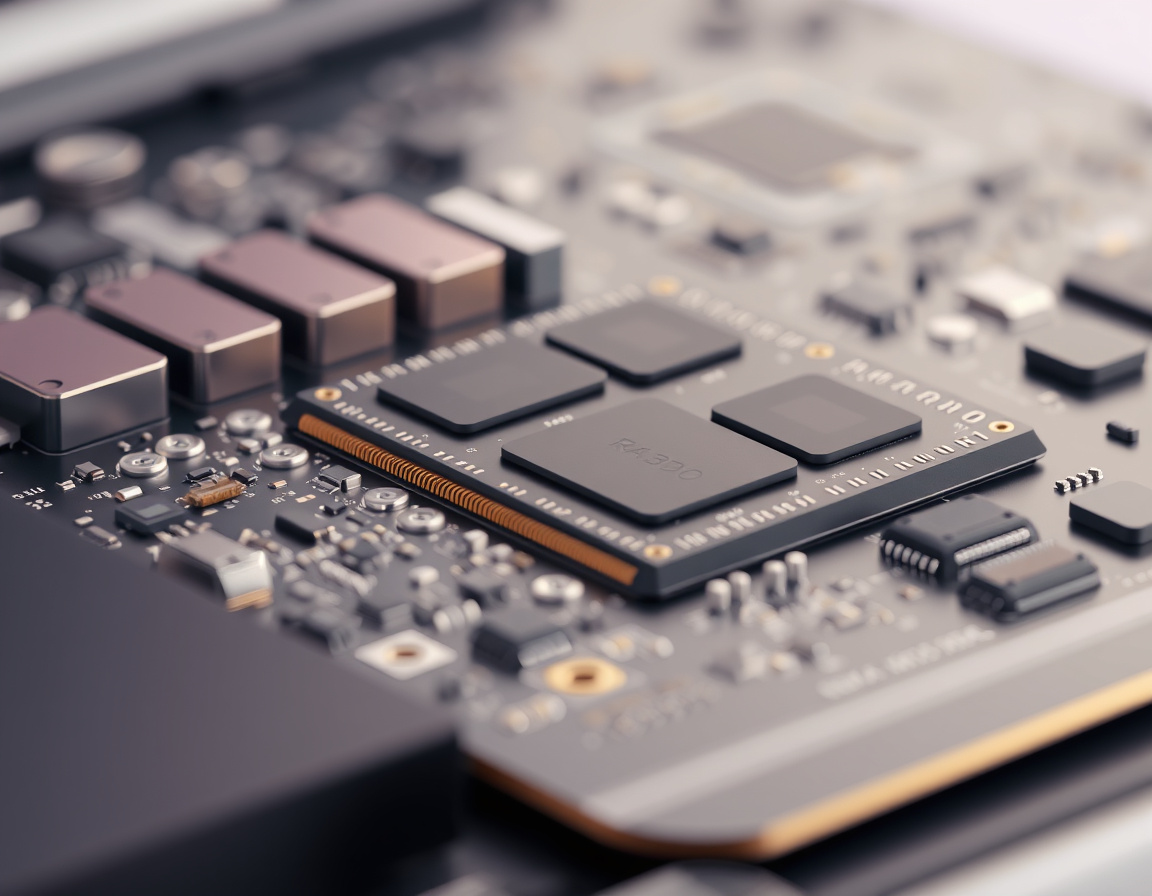
Skip any laptop where the seller can't tell you the RAM type, the storage type, and the display resolution without checking a spec sheet you can't see. That sounds obvious, but it's the single fastest filter for weeding out the machines that will feel slow on day one and unrepairable on day two hundred.
The specific red flags worth walking away from:
- Soldered RAM with no upgrade path. If the memory is fixed at the factory and the machine ships with 4GB or 8GB, that ceiling is permanent. There's no SODIMM slot to add to later.
- eMMC storage instead of an SSD. eMMC is slower, has lower write endurance, and is common on the cheapest Windows laptops. It's a reasonable trade in a tablet; it's a poor one in a machine meant to run Windows updates and multiple applications at once.
- Sub-1080p or low-brightness panels on anything priced as a work or study machine. A dim, low-resolution screen is the hardest thing to notice in a store and the hardest thing to live with afterward.
- A processor generation that's already one or two cycles behind at full price. This matters less for basic browsing and more for anything involving video editing, virtualization, or sustained multi-core loads.
- No stated OS update or security-patch commitment. If a retailer can't say how long the machine will keep receiving updates, assume it's already most of the way through its support life.
None of these make a laptop unusable. They make it a bad trade for the money, which is a different problem and the one worth solving before checkout rather than after.
Soldered RAM, eMMC storage, and why these two specs decide more than they look like they should

A laptop's RAM type and storage type decide how long it stays usable, not just how fast it feels unboxed. These two line items are the ones manufacturers compress into short spec-sheet codes, and they're worth decoding before anything else on the page.
RAM soldered to the motherboard can't be added to later — what ships in the box is what the machine has for its entire life. A socketed SODIMM slot, by contrast, lets a capable but under-specced machine get a second life with an upgrade. Storage works the same way: a replaceable M.2 SSD can be swapped out when it fails or runs out of space; eMMC storage is typically fixed and slower under sustained write loads, which is why it shows up almost exclusively on budget machines rather than anything positioned for productivity work.
Bulk government procurement specifications are a useful sanity check here, because they spell out exactly what a durable classroom or office machine is expected to include. A tender for laptops destined for schools, for instance, lists specific RAM and storage minimums rather than leaving them vague, which is the level of detail a retail spec sheet often omits — see the Malawi Ministry of Education's laptop tender notice for an example of how a buyer with support and lifespan obligations writes those requirements down. A similar public tender for desktop and laptop provision in Papua New Guinea follows the same pattern of naming exact specifications rather than leaving them to vendor discretion, in the PNG "Connect Our School" project lot. Retail listings rarely give a casual buyer that level of detail unprompted, which is exactly why it has to be checked manually rather than assumed.
Computer powers on but shows no display and never reaches Windows
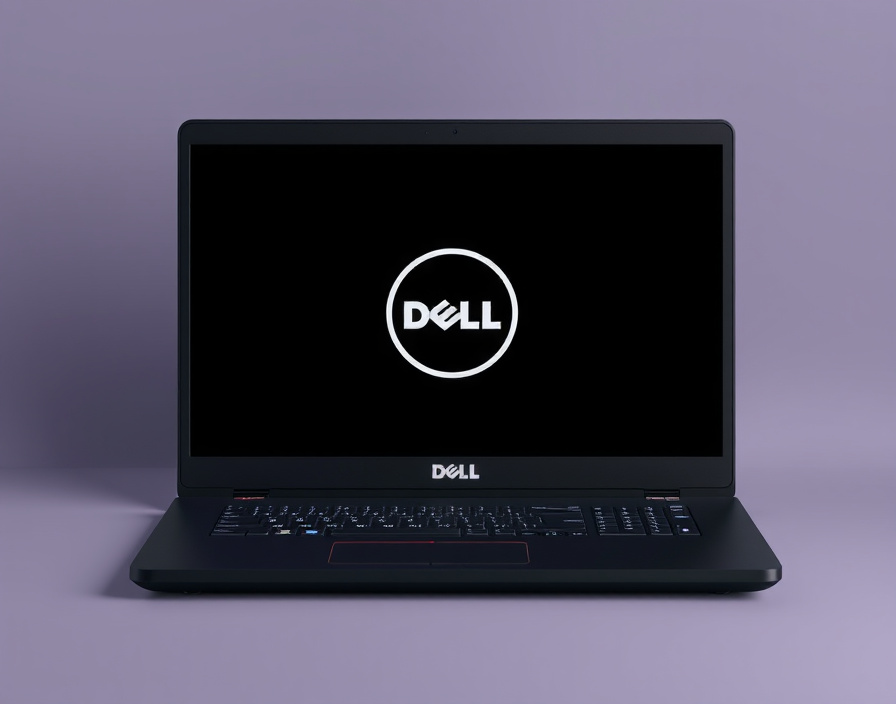
A machine that powers on — fans spin, lights come on — but never shows a picture and never reaches the Windows logon screen has failed somewhere between power-on and the operating system loading, and that failure point matters for what you do next. This is a POST failure, not a Windows problem, and it needs a different fix than reinstalling software.
Dell's own troubleshooting guidance for this exact symptom lays out a fixed sequence rather than a guess-and-check approach, and it's worth following in order because each step rules something out before you move to the next, more invasive one:
- Read the beep or LED pattern, if there is one. Before the operating system loads, firmware runs a Power-On Self-Test, and many machines signal a failure with a specific beep count or blinking LED code tied to a subsystem — memory, display, or the processor itself, according to Dell's support documentation on POST failures.
- Disconnect every external peripheral — USB drives, external monitors, docking stations, printers — and attempt to power on again. A peripheral conflict at boot is one of the more common and cheapest-to-rule-out causes.
- Perform a hard reset. Power off fully, disconnect the charger and battery where removable, hold the power button for several seconds to drain residual charge, then reconnect and power on.
- Reseat memory and the storage drive, if the chassis allows safe access. A module that has shifted slightly out of its slot — from shipping, a drop, or routine handling — can produce exactly this symptom and is fixed by reseating it rather than replacing it.
- Run the built-in hardware diagnostic, usually triggered by a function key combination at startup, to get a specific pass/fail result per component rather than relying on inference from the symptom alone.
Following that order matters because it separates a zero-cost fix (unplug something, reseat a part) from a genuine hardware failure that needs a service visit, and it does so before you've paid anyone to look at it.
Storage drive fails or is disconnected
If the screen shows the manufacturer's logo, a BIOS or UEFI menu, or any firmware-level screen at all, the machine has passed POST — the storage drive and the operating system are a separate problem from here. This distinction gets blurred constantly, but it changes what's broken and what fixes it.
A completed POST with no operating system loading afterward usually means one of three things: the drive isn't detected, the drive is detected but has no bootable operating system on it, or the boot order in firmware is pointed somewhere else. The fix sequence differs from the POST sequence above:
- Check drive detection in firmware. Entering the BIOS/UEFI setup screen and looking for the drive listed under storage or boot devices confirms whether the hardware is being seen at all.
- Run drive-specific diagnostics if the manufacturer provides them, which test the drive directly rather than inferring health from boot behavior.
- Reseat the drive if it's a removable M.2 or 2.5-inch unit and the chassis allows safe access — a connection that has worked loose produces the same symptom as a failed drive.
- Replace the drive and reinstall the operating system if diagnostics confirm failure. This is the point past which no amount of reseating or resetting fixes anything.
Dell frames this as a distinct branch of its own troubleshooting flow, separate from the no-POST symptoms above, precisely because a drive or OS failure happens after the hardware has already proven itself functional — see the same Dell POST and boot troubleshooting reference for how the two are differentiated. Mixing the two under one "won't start" label leads to the wrong fix being attempted first — reseating memory does nothing for a dead drive, and replacing a drive does nothing for a failed POST.
Identify the intended use case before you shop
The honest starting point for any laptop purchase is naming what it actually needs to do, because "best laptop" has no answer until that's settled. A machine bought for web browsing, email, and video calls has a completely different spec floor than one bought for spreadsheet-heavy office work or for a student running design or engineering software.
| Use case | Processor | RAM | Storage | Display |
|---|---|---|---|---|
| Browsing, email, streaming | Entry-level, current generation | 8GB minimum | 256GB SSD | 1080p-equivalent resolution, screen matched to comfortable reading |
| Study and office work | Mid-range multi-core | 16GB | 512GB SSD | Matte or anti-glare panel |
| Creative or technical work | Higher core count, discrete GPU where relevant | 16GB or more | 512GB–1TB SSD | Wider color coverage |
HP's own guidance on choosing a laptop for home use frames the decision the same way — starting from what the household actually does with the machine before looking at any specific model — in its home-use laptop buying guide. The order matters: picking the use case first turns a vague "best laptop" search into a specification checklist that applies to any brand or model list, rather than chasing whichever machine is being promoted that week.
Budget constraints change which of those rows is reachable, not whether the exercise matters. A listing for Ryzen-based laptops priced under a fixed ceiling, for instance, shows how a budget cutoff still maps to a usable processor and SSD combination without dropping to eMMC storage, per the RTC Bhutan laptop listing — the trade at that price point tends to be display quality or chassis material, not the two specs that matter most for day-to-day use.
Laptop vs desktop for the same budget
A laptop and a desktop at the same price point rarely buy the same amount of processing power, and that trade is worth making deliberately rather than by default. Portability costs something in raw performance per dollar — a desktop at a given price typically includes a faster processor, more RAM, or a better GPU than a laptop at the same price, because it doesn't have to fit a battery, thin chassis, and thermal constraints into the same budget.
The decision comes down to where the machine will actually be used. A desktop makes sense when the machine stays in one place — a home office, a shared family space, a classroom — and portability adds no value. A laptop earns its premium when the device needs to move: between home and campus, between rooms, or on travel. Institutional buyers often split the difference by specifying both in the same procurement round rather than choosing one, which is visible in tenders that request desktop and laptop units together for different roles within the same deployment, as in the PNG school connectivity project's combined desktop-and-laptop request — fixed workstations where machines stay put, laptops where they don't.
Where to buy: manufacturer, retailer, or refurbished
The purchase channel decides the return window, the warranty handling, and what happens if the machine needs service — and those terms vary enough between channels that they're worth checking before the price, not after. None of the three is categorically better; each suits a different tolerance for risk and patience.
- Manufacturer-direct purchases typically offer the clearest path to warranty service, since the seller and the support line are the same company, and often include configuration options not available through third-party retailers.
- Retailer purchases usually offer a shorter, more flexible return window than going direct, which matters if the buyer wants to physically handle the machine or return it quickly without a manufacturer RMA process.
- Refurbished units, whether sold by the manufacturer or a third party, cut the price but shorten or complicate the warranty — the terms on a refurbished machine need to be read in full rather than assumed to match a new one.
Institutional buyers write these terms into the purchase contract explicitly rather than leaving them to a retailer's default policy — warranty length, service-level response time, and parts availability are specified line items in bulk procurement, visible in both the Malawi education ministry's tender terms and the PNG school project's request for proposal. An individual buyer doesn't need a contract, but asking the same three questions — how long is the return window, what does the warranty actually cover, and who services the machine if it breaks — before paying does the same job.
When opening the chassis voids the warranty
Reseating memory or a storage drive is standard advice in troubleshooting guidance, but it isn't risk-free on every machine. Whether opening the chassis is safe depends entirely on how the manufacturer designed it and what the warranty terms say, and that's worth checking before reaching for a screwdriver.
Machines built with a user-accessible panel — a removable base plate secured with standard screws, explicitly documented SODIMM or M.2 bays — are generally designed with the expectation that an owner or technician will get inside them. Thin-and-light laptops with glued-down batteries, non-standard screws, or soldered components are not, and opening those can both fail to fix anything and separately void whatever warranty coverage remains. The manufacturer's own support documentation is the place to confirm this before anything else: Dell's POST troubleshooting guidance frames reseating as a step for machines where the chassis is meant to be opened by the user, not a universal instruction. If the model's own documentation doesn't describe a user-accessible panel, that silence is itself the answer — the safer move is a service visit, not a guess.
What to do next
If the laptop under consideration has soldered memory under 8GB, eMMC storage, or no stated update commitment, that's the point to walk away and look at the next listing rather than talk yourself into it. If a machine already owned is showing a POST failure, work the sequence in order — disconnect peripherals, hard reset, check for a documented access panel before opening anything. And if the question is which machine to buy rather than which to fix, write down the use case in one sentence before opening a single product page; everything else in the spec sheet follows from that sentence, not the other way around.